


Cómo funciona el widget de zona de potencia en engo3
Índice
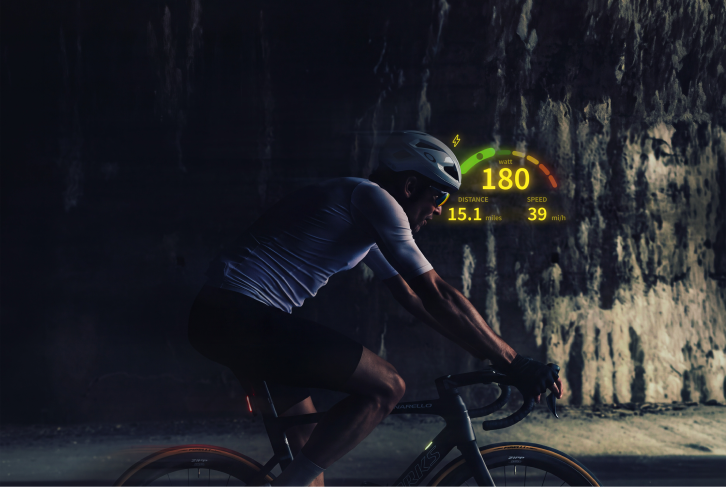
engo3 coloca tu zona de potencia en tu línea de visión, de rojo a verde, de la zona 1 a la 7. Aquí te explicamos exactamente cómo funciona, qué aparece en tu HUD y cuáles son los límites actuales.
La versión corta
Tu medidor de potencia no se vincula a tus gafas. Se vincula a tu Garmin Edge o Garmin Watch, de la misma manera que lo hace actualmente. engo3 lee el número de potencia real que tu dispositivo Garmin ya está recibiendo, lo compara con los límites de zona que tú mismo estableces en la aplicación complementaria de engo3 y muestra tu zona en el HUD, junto con el resto de tus métricas de ruta.
Un medidor de potencia. Un dispositivo Garmin. Tus zonas, configuradas una sola vez en la aplicación complementaria.
El flujo de datos, paso a paso
- Tu medidor de potencia se comunica con tu dispositivo Garmin. Un medidor de potencia basado en bielas, pedales o buje se vincula directamente a tu Garmin Edge o Garmin Watch a través de ANT+ o Bluetooth. Esta vinculación funciona exactamente como siempre. engo3 no interviene en este proceso.
- Tu dispositivo Garmin recibe tu número de potencia. Vatios, en tiempo real, la misma lectura que ya muestra hoy cuando miras tu campo de potencia. engo3 no cambia esta lectura.
- engo3 lee ese número de potencia de tu dispositivo Garmin. Tus gafas se conectan al mismo Garmin Edge o Watch al que está vinculado tu medidor de potencia, la misma conexión que engo3 ya utiliza para el radar, el ritmo y tus otros campos de datos.
- engo3 lo compara con tus zonas y colorea tu HUD. Zona 1 a 7, de rojo a verde, según los límites que hayas configurado en el widget de Zona de Potencia en la aplicación complementaria, no según cualquier configuración de FTP o zona en tu dispositivo Garmin.
Por qué es importante: tu dispositivo Garmin no calcula la zona que te muestra engo3, solo suministra el número de potencia en bruto. Los límites de las zonas residen en la aplicación complementaria de engo3, por lo que puedes configurarlos y mantenerlos actualizados a medida que tu condición física cambia, independientemente de la estructura de FTP o zona que utilice tu dispositivo Garmin para su propia pantalla.
Lo que ves en el HUD
- Tu zona actual, de 1 a 7
- Color, de rojo a verde, según la zona
- Si la conexión funciona entre tu medidor de potencia y tu dispositivo Garmin
No hay ninguna aplicación separada que consultar durante la ruta, ni pantalla adicional que configurar una vez completada la instalación. El widget de zona de potencia aparece en la pantalla del HUD junto a las alertas de tu radar, el ritmo y el resto de tus datos de ruta.
Configuración
- Vincula tu medidor de potencia a tu Garmin Edge o Garmin Watch, exactamente como lo harías sin engo3.
- Vincula tu engo3 a ese mismo dispositivo Garmin a través de la aplicación complementaria, si aún no lo has hecho.
- En la aplicación complementaria, añade el widget de Zona de Potencia a una de tus pantallas de datos, de la misma forma que añadirías cualquier otro campo de datos.
- Abre los ajustes del widget de Zona de Potencia y establece tus límites de zona manualmente. Este paso no ocurre automáticamente y es independiente de cualquier configuración de FTP o zona en tu dispositivo Garmin.
- Comienza tu ruta. Tu zona de potencia aparecerá en la pantalla donde colocaste el widget.
Si ya sales a rodar con un medidor de potencia y un dispositivo Garmin, la vinculación no es nada nuevo. Lo único que hay que hacer la primera vez es añadir el widget a una pantalla y configurar tus zonas en la aplicación complementaria. Una vez hecho esto, permanecerá configurado para todas las rutas posteriores.
Compatibilidad
Medidores de potencia. engo3 no se vincula a una marca específica de medidor de potencia, lee cualquier número de potencia que tu Garmin Edge o Watch ya reciba. En la práctica, significa que funciona con cualquier medidor de potencia ANT+ o Bluetooth que tu dispositivo Garmin reconozca como sensor de potencia, ya sea basado en bielas, pedales o buje, entre ellos Garmin Rally y Vector, Stages Cycling, Favero Assioma, Quarq, SRM, ROTOR INpower, 4iiii Precision y Wahoo POWRLINK. Si tu dispositivo Garmin ya muestra un campo de potencia hoy, engo3 leerá ese mismo campo.
Dispositivos Garmin. Actualmente se confirma que funciona sin problemas en Edge 540, 840, 1040, 1050 y Edge Explore. Edge Explore 2 no es compatible.
Apple Watch. La pantalla de zona de potencia aún no está disponible en iOS. Si vinculas engo3 con un Apple Watch, los datos de la zona de potencia no se mostrarán en tu HUD por el momento.
Limitación conocida: Serie Garmin Edge 30 (530 / 830)
Si sales a rodar con un Edge 530 o Edge 830, existe un límite de sensores que conviene conocer antes de salir.
Estos dos modelos pueden perder la conexión con los sensores a mitad de la ruta cuando hay demasiados vinculados a la vez. Un medidor de potencia por sí solo, o un medidor de potencia más otro sensor, funciona bien. Un medidor de potencia más un sensor de cadencia y un radar, todos vinculados al mismo tiempo, conlleva un riesgo significativamente mayor de que la conexión se interrumpa durante la ruta.
Esto no es un fallo de engo3 ni de tu medidor de potencia. Es una limitación de los propios Edge 530 y 830, confirmada por el servicio técnico de Garmin, y existe independientemente de engo3. Mantenemos estos modelos en nuestra lista de compatibilidad porque eliminarlos también bloquearía el campo de datos para los usuarios que ya lo están utilizando. Si usas un Edge 530 u 830 con una configuración completa de sensores, ten en cuenta que podría haber desconexiones ocasionales y contáctanos si necesitas ayuda para priorizar qué sensores mantener vinculados.
Preguntas frecuentes
¿Necesito engo3 Cyclist específicamente o funciona en cualquier engo3?
La visualización de la zona de potencia funciona en toda la plataforma engo3, no solo en engo3 Cyclist. engo3 Cyclist añade un marco más amplio diseñado para posiciones de carretera y gravel, pero el widget de zona de potencia funciona igual en toda la gama engo3.
¿Extrae engo3 mis zonas del FTP de Garmin automáticamente?
No. Tu dispositivo Garmin puede usar su propia configuración de FTP para sus propias pantallas, pero las zonas de engo3 provienen únicamente de lo que establezcas en el widget de Zona de Potencia en la aplicación complementaria. Si actualizas tu FTP en tu Garmin, actualiza tus zonas en la aplicación complementaria por separado para que coincidan.
¿Cómo configuro o cambio mis límites de zona?
En la aplicación complementaria de engo3, abre el widget de Zona de Potencia e introduce tus límites allí. No hay nada que configurar en tu dispositivo Garmin para esto, y engo3 no establece nada por ti automáticamente.
¿Puedo usar cualquier marca de medidor de potencia?
Sí, siempre que tu Garmin Edge o Watch lo reconozca como sensor de potencia y muestre un campo de potencia por sí mismo. engo3 lee ese mismo campo independientemente de la marca del medidor de potencia.
¿Qué sucede si mis datos de potencia aparecen en mi Garmin pero no en mi HUD?
En la aplicación complementaria, comprueba que el widget de Zona de Potencia se haya añadido a una de tus pantallas de datos, que tus límites de zona estén establecidos, que tu engo3 esté vinculado al mismo Garmin Edge o Watch al que está conectado tu medidor de potencia y que tienes instalada la versión más reciente del software de engo3.
Descubre engo3
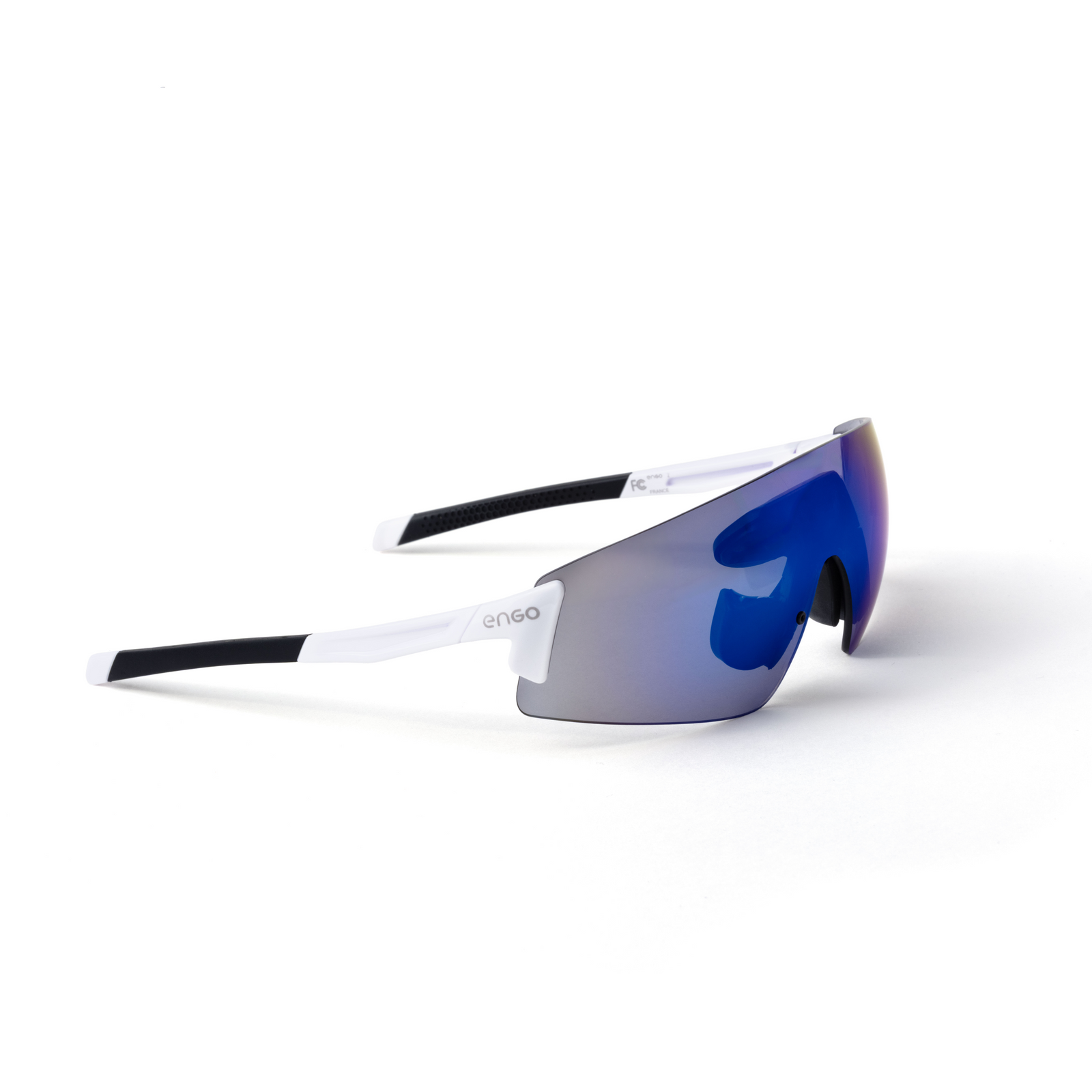
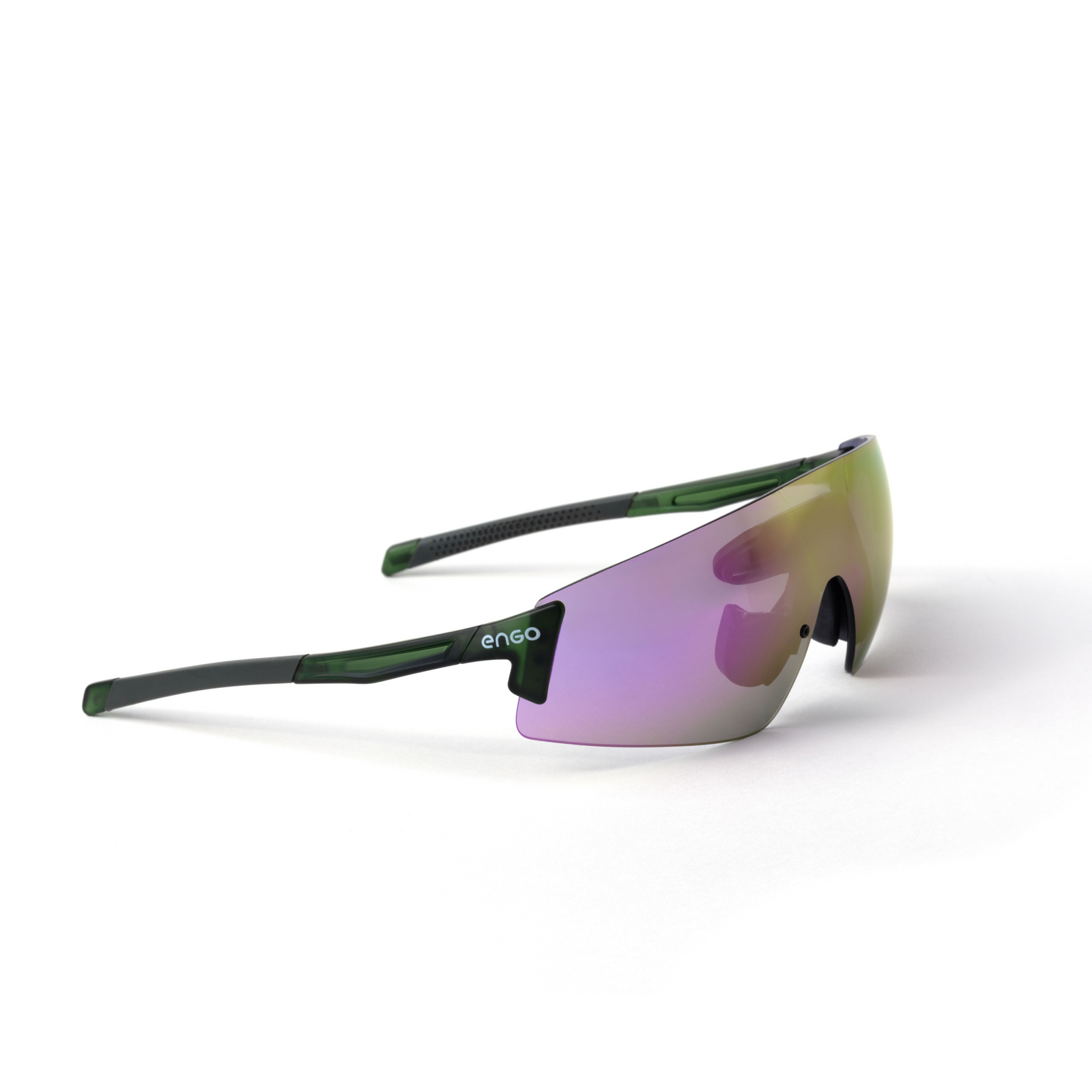
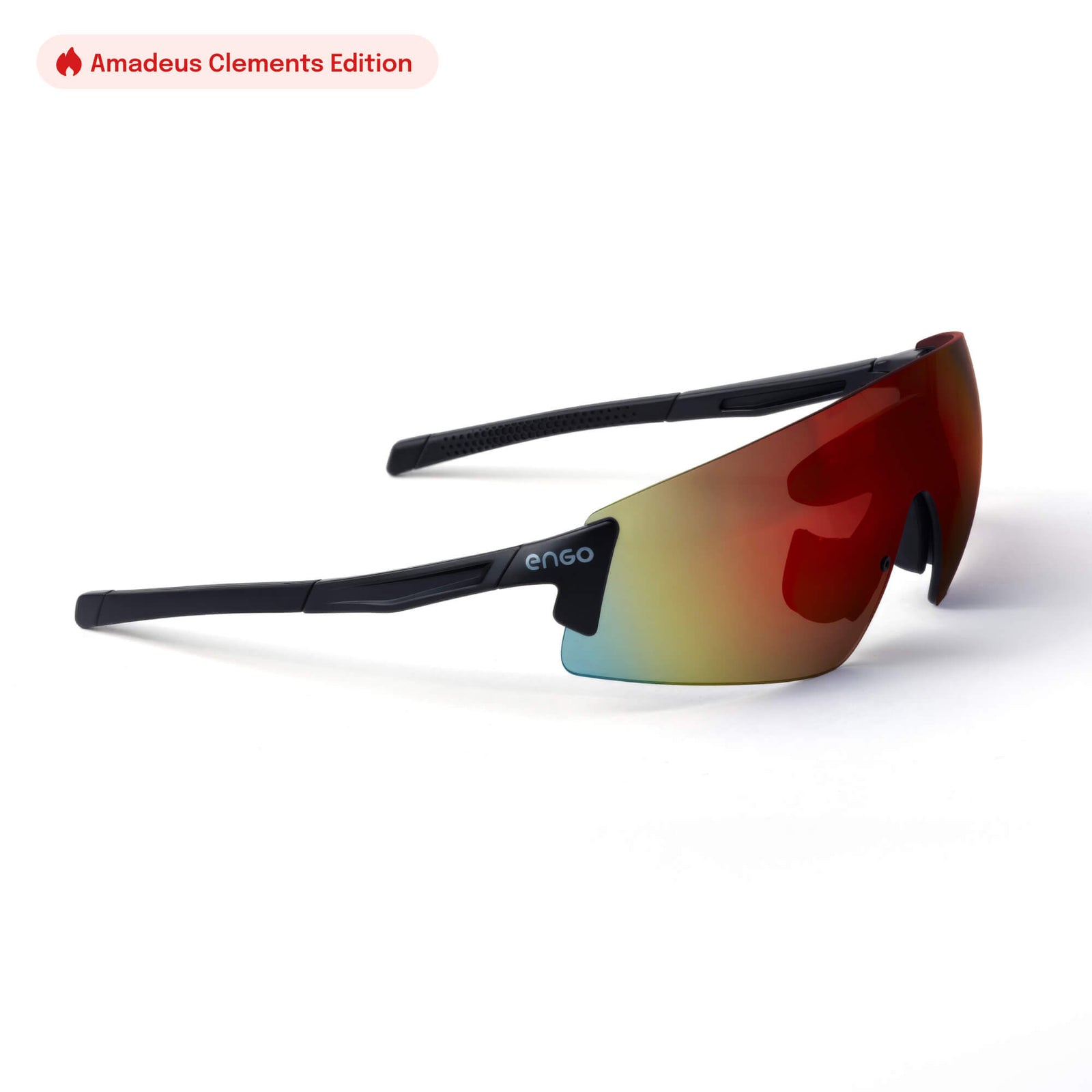
Todo lo que los corredores preguntan, respondido.
¿Realmente notaré la diferencia?
Las engo3 utilizan lentes tintadas fijas (categoría 3), perfectas para condiciones muy soleadas. Las engo3 Photochromic cuentan con lentes fotocromáticas que se adaptan automáticamente a los niveles de luz (cat. 0 a 3), lo que las hace ideales para condiciones de luz cambiantes.
¿Es engo3 compatible con Garmin?
Sí, lo es, con más de 81 modelos de dispositivos Garmin, además del Apple Watch.
¿En qué se diferencia engo3 de Meta Oakley Vanguard?
engo3 es una pantalla de alto rendimiento diseñada para corredores y ciclistas serios: una pantalla de visualización frontal (HUD) de realidad aumentada ligera (38,5 g) que proyecta tus estadísticas (ritmo, frecuencia cardíaca, cadencia y más) directamente en tu campo de visión, con más de 20 horas de duración de batería y sin cámara, música ni notificaciones que te distraigan.
Las Oakley Meta Vanguard son unas gafas inteligentes de uso general con cámara integrada y Meta AI, que te ofrecen estadísticas deportivas a través de comandos de voz o audio en lugar de una pantalla visual, con unas 9 horas de duración de batería. En resumen: engo3 mantiene tus ojos en la carretera y tus datos siempre visibles, mientras que Vanguard es un dispositivo multitarea donde el deporte es una característica más entre muchas.
¿Cuánto dura la batería del engo3?
Más de 24 horas
¿Puedo usar engo3 para trail running o carreras de ultra distancia?
¡Sí!
¿Tiene cámara el engo3?
No, engo3 no tiene cámara. Está diseñado exclusivamente como una pantalla de datos: sin cámara, sin música, sin notificaciones, solo tus estadísticas en tiempo real (ritmo, frecuencia cardíaca, cadencia, etc.) proyectadas en tu campo de visión. Es una elección deliberada para mantenerlo ligero (38,5 g) y centrado en el rendimiento en lugar de en la captura de contenido.
¿Cuál es el peso de engo3?
38,5 g
Leer más artículos

El trabajo detrás de la pantalla: tres meses de actualizaciones de software
Una nota del responsable de software de engo sobre lo que ha cambiado desde el lanzamiento, tanto para usuarios de Garmin como de Apple Watch.
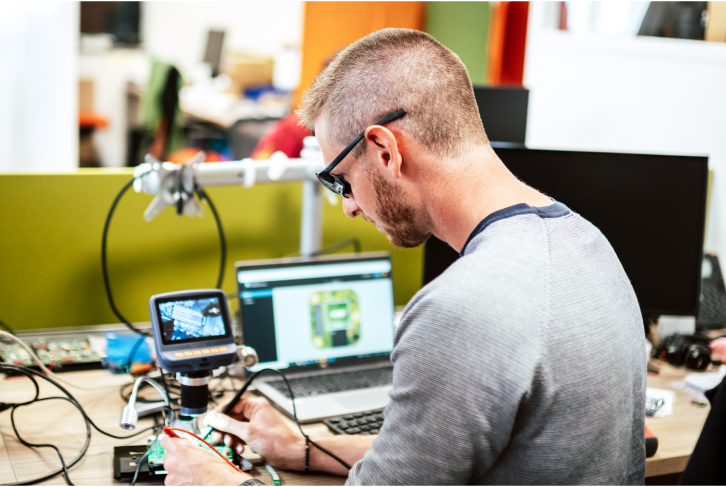
Enfoque en TF1: Dentro de nuestra tecnología
TF1 vino a nuestro encuentro en Grenoble para descubrir la tecnología detrás de nuestras gafas inteligentes y verlas en acción, desde correr y montar en bicicleta hasta navegar.
Cómo funciona el widget de zona de potencia en engo3
Tu medidor de potencia se vincula a tu Garmin, no a tus gafas, y tus zonas se configuran en la aplicación engo3, no se extraen de Garmin. A continuación, te explicamos exactamente cómo llega tu zon...

Dispositivos compatibles
Funciona con la mayoría de los relojes Garmin y Apple. Consulta la lista completa de dispositivos compatibles y aplicaciones de terceros que funcionan a la perfección con engo.
Comprueba la compatibilidad de tu dispositivo
Comience en minutos
Instrucciones paso a paso para vincular ENGO con su modelo de reloj específico. Una guía clara y sencilla para pasar del desempaquetado a su primera carrera en menos de 5 minutos.
Conecta ENGO a tu dispositivo
Devoluciones
Entrena con engo durante 30 días. Si no transforma tu forma de correr, devuélvelo gratis con nuestra etiqueta prepagada. Reembolso completo, sin preguntas y sin gastos de reposición.
Ver proceso de devolución
¿Tienes preguntas? Estamos aquí para ayudarte.
Explore nuestra biblioteca de preguntas frecuentes, consulte nuestras guías de configuración detalladas, busque en nuestra base de datos de ayuda o chatee directamente con nuestro equipo de soporte. Ayuda real cuando la necesita.
Visitar el Centro de soporte